When using the merge function in Twig, the new element is appended to the array. However, we would like the new element to prepend the existing array.
{# The elements array we want to add a '0' to at the beginning. #}
{% set elements = ['1', '2', '3'] %}
{# Working: Merge elements to a new array and override the variable. The result will be ['0', '1', '2', '3']. #}
{% set elements = ['0']|merge(elements) %}
{# Not working: The result will be ['1', '2', '3', '0']. #}
{% set elements = elements|merge(['0']) %}
Issue:
When using the merge function in Twig, the new element is appended to the array. However, we would like the new element to prepend the existing array.
Solution:
Create a new array and append the original array to it.
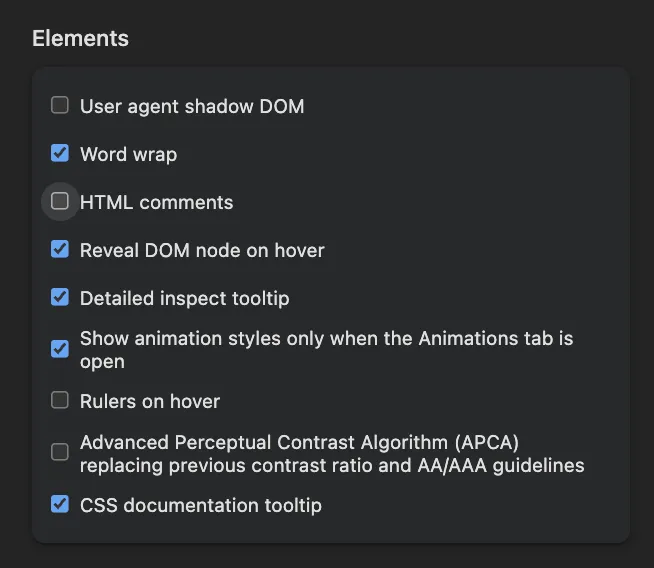
provide an option to hide comments in the Elements panel. Open the Inspector and click on Settings. Then scroll down to the Elements section. Uncheck the “show HTML comments” option.
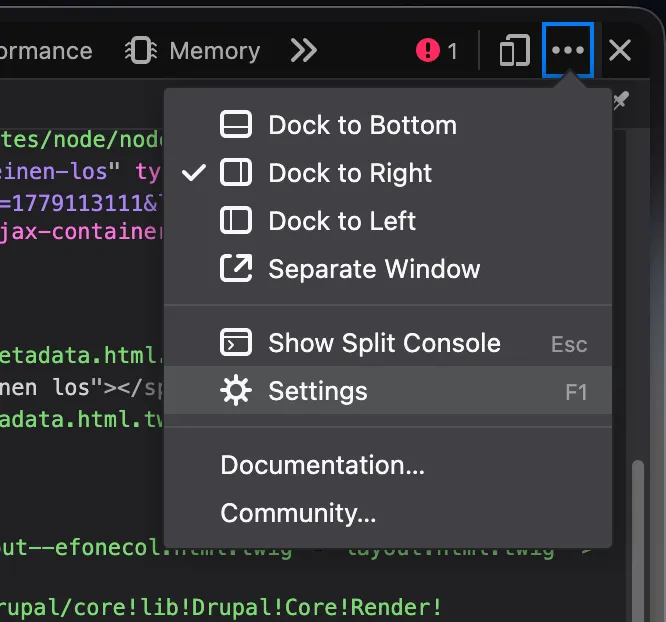
1. Open the browser's Developer Tools:
Press F12, or
Press Ctrl + Shift + I (Windows/Linux), or
Right-click an element and select Inspect.
2. Open the DevTools settings:
Click the Settings (⚙) icon in the DevTools toolbar.
The Settings icon is located near the upper-right corner of DevTools, immediately to the left of the three-dot menu.
3. In the Preferences tab, scroll down to the Elements section.
4. Clear the Show HTML comments checkbox. (as shown in the screenshot above)
5. Close the Settings panel.
HTML comments (<!-- comment -->) are now hidden in the Elements panel, making the DOM tree easier to navigate and debug. To display comments again, re-enable the Show HTML comments option.
Firefox
Recent Firefox versions provide a similar setting in the Inspector. If the option is not available in your Firefox installation, update to the latest version.
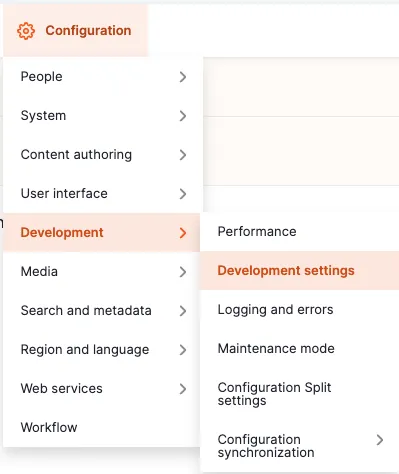
Sitebuilding solution: Navigate to the administrative area via the admin toolbar to Configuration -> Development -> Development settings or via the path /admin/config/development/settings
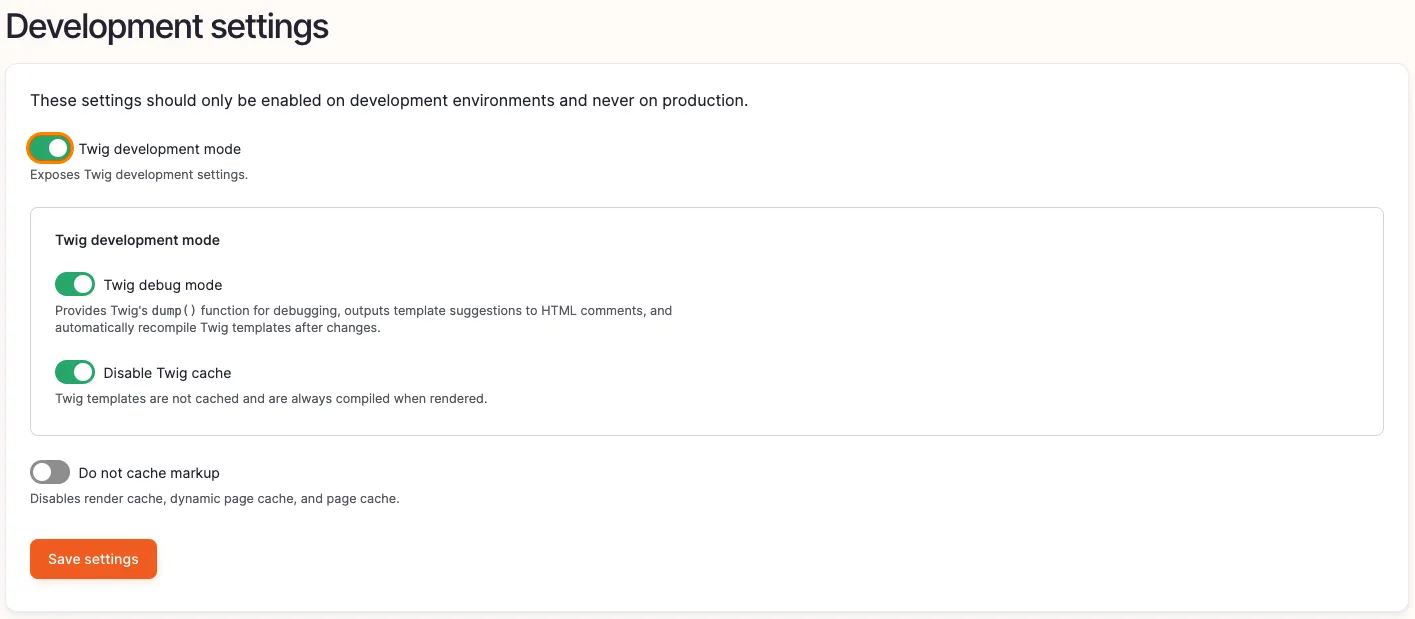
Enable the checkbox Twig development mode, as well as Twig debug mode and Disable Twig cache.
This is a small but useful snippet for generating menu tree render arrays for any menu from a custom controller.
    $menu_name = 'my_custom_menu_machine_name';

    $menu_tree = \Drupal::menuTree();
    // Build the typical default set of menu tree parameters.
    $parameters = $menu_tree->getCurrentRouteMenuTreeParameters($menu_name);
    // Load the tree based on this set of parameters.
    $tree = $menu_tree->load($menu_name, $parameters);
    // Transform the tree using the manipulators you want.
    $manipulators = [
      // Only show links that are accessible for the current user.
      ['callable' => 'menu.default_tree_manipulators:checkAccess'],
      // Use the default sorting of menu links.
      ['callable' => 'menu.default_tree_manipulators:generateIndexAndSort'],
    ];

    $tree = $menu_tree->transform($tree, $manipulators);

    $menu = $menu_tree->build($tree);

     // Set theme for custom styling.
    $menu['#theme'] = 'my_custom_theme';
Issue:
Sometimes you might need to load and render a custom menu inside a controller – for example on a user dashboard – with access checking, default sorting, and a custom theme hook applied.
Solution:
This is a small but useful snippet for generating menu tree render arrays for any menu from a custom controller.
Just change $menu_name to the machine name of your menu.
Extra: For similar use cases, you might want to use the Drupal Twig Tweak module. You can also use the {{ drupal_menu('my_menu') }} function directly in your template.
You want JavaScript to execute something based on a breakpoint in a CSS media query.
// Retrieve all computed styles from the root HTML element (:root)
const rootStyles = getComputedStyle(document.documentElement);

// Get the value of the CSS variable --Breakpoint.
// Use a fallback (e.g., 768px) if the variable is not defined.
const breakpoint = rootStyles.getPropertyValue('--Breakpoint').trim() || '768px';

// Create a MediaQueryList based on the breakpoint value
const mediaQuery = window.matchMedia(`(min-width: ${breakpoint})`);

// Function that runs when the viewport is at or above the breakpoint
function handleDesktopLayout() {
    console.log("Viewport is at or above the breakpoint.");
}

// Function that runs when the viewport drops below the breakpoint
function handleMobileLayout() {
    console.log("Viewport is below the breakpoint.");
}

// Early return for the initial state:
// If the viewport does NOT meet the breakpoint requirement, run mobile logic and exit
if (!mediaQuery.matches) {
    handleMobileLayout();
    // No desktop logic needed at this point
} else {
    handleDesktopLayout();
}

// Listen for changes in viewport size relative to the breakpoint
mediaQuery.addEventListener('change', (event) => {
    if (event.matches) {
        // The viewport just became equal to or larger than the breakpoint
        handleDesktopLayout();
    } else {
        // The viewport just became smaller than the breakpoint
        handleMobileLayout();
    }
});
Issue:
You want JavaScript to execute something based on a breakpoint in a CSS media query.
Solution:
Read the breakpoint value directly from the --Breakpoint CSS variable, create a matchMedia query from it, and use an event listener to run JavaScript whenever the viewport crosses that breakpoint.
Blocks inside a layout region are not sorted by weight property per default, even though the weight is used for rendering in the rendering process. But when you work with the blocks in a template directly you can't make sure they appear in the right order.
/**
 * Implements hook_preprocess_HOOK() for layout.html.twig.
 */
function hook_preprocess_layout(&$variables) {
  $layout = $variables['layout'];
  foreach ($layout->getRegionNames() as $region_name) {
    if (array_key_exists($region_name, $variables['content'])) {
      uasort($variables['content'][$region_name], [\Drupal\Component\Utility\SortArray::class, 'sortByWeightProperty']);
    }
  }
}
Issue:
Blocks inside a layout region are not sorted by weight property per default, even though the weight is used for rendering in the rendering process. But when you work with the blocks in a template directly you can't make sure they appear in the right order.
Solution:
Preprocess the regions and use the Drupal Core sortByWeightProperty mechanism to change the order of the blocks in the array before entering the template.
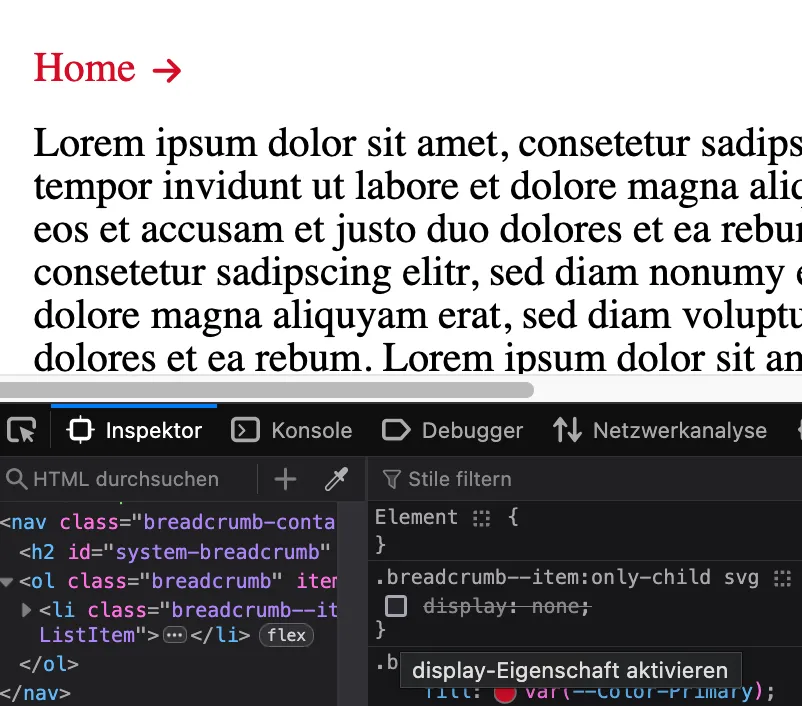
In breadcrumbs, for example, icons are often assigned for illustrating the following entries. However, under certain circumstances there may only be the initial entry, so the icon points to a blank space.
In breadcrumbs, for example, icons are often assigned for illustrating the following entries. However, under certain circumstances there may only be the initial entry, so the icon points to a blank space.
Breadcrumb <ol> with only one child <li> and icon <svg>
Solution:
Make use of the `:only-child` pseudo-class to determine whether there is only one item in the breadcrumb. See more in the Mozilla Dev Documentation
If you set an anchor link and let the browser scroll there, by default it scrolls to position 0 on the y angle, placing the content to which was scrolled exactly at the top of the browser's viewport. But if the website uses a sticky header which is also placed on top of the viewport, this actual…
If you set an anchor link and let the browser scroll there, by default it scrolls to position 0 on the y angle, placing the content to which was scrolled exactly at the top of the browser's viewport. But if the website uses a sticky header which is also placed on top of the viewport, this actual content to which was scrolled might not be visible, since the sticky header overlaps it.
Solution:
Use the CSS property proposed in the snipped. It sets an offset when the browser triggers the scrolling action and allows to take the height of sticky headers or sticky toolbars into account.
While developing a frontend theme you want to debug in a similar fashion as you would do with PHP code in your IDE, including the option to stop code interpretation at certain lines.
You need to load an object by a value in a nested data structure, e.g. by its ID.
/**
 * Loads an object from another object by value of a certain key.
 *
 * @usage
 *   data = [
 *     'foo': {
 *         'id' => 5,
 *         'label' => 'Foo'
 *     },
 *     'bar': {
 *         'id' => 6,
 *         'label' => 'Bar'
 *     }
 *   ]
 *   foo = getObjectFromDataByKeyValue('id', 5, data)
 *
 * @param key
 *   The key we are comparing our value with.
 * @param value
 *   The value the key should have.
 * @param data
 *   The data you want to search in.
 * @returns {unknown}
 */
function getObjectFromDataByKeyValue(key, value, data) {
  return Object.values(data).find(o => o[key] === value)
}
Issue:
You need to load an object by a value in a nested data structure, e.g. by its ID.