Direkt zum Inhalt

Devbits

Kleine Code-Schnipsel aus unserem Alltag mit Drupal, PHP und DevOps: Problem, Lösung, Code.

06.08.2026 | Lothar Ferreira Neumann

Change custom text field sizes in Gin Backend Theme using Asset Injector

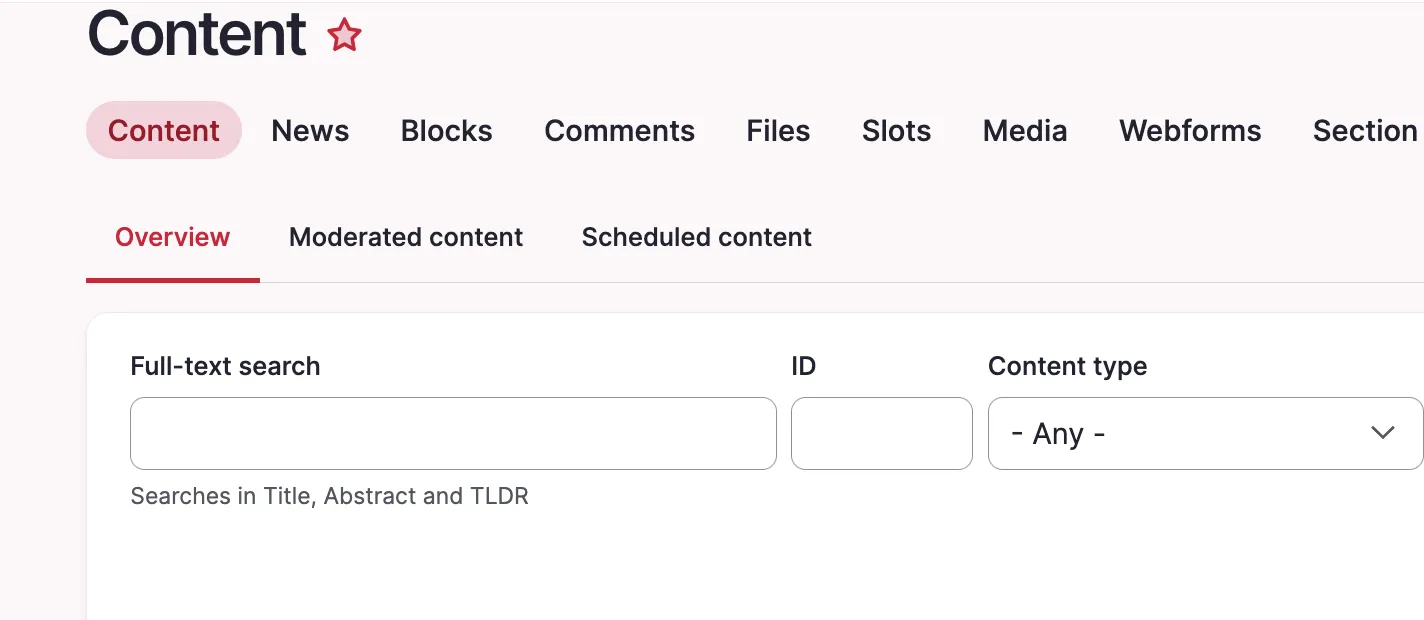
A custom text input field might appear too large in Gin. Our example uses an ID field which will usually never be filled with more than ~7 characters.

To alter the node ID field (nid) of our content view we add this to the file:

/* Views exposed filter: appropriate field widths */
.views-exposed-form #edit-nid {
  max-width: 10ch;
}

Issue:

A custom text input field might appear too large in Gin. Our example uses an ID field which will usually never be filled with more than ~7 characters.

Prerequisites:

Our solution uses the Asset Injector module. This module can be useful for small additions to backend theming. However, there may be cleaner solutions to this, e.g. extending Gin for your project with some custom CSS, defining a custom field type, and more. 

Solution:

Adjust the width of specific Views exposed filter fields using CSS through Asset Injection. This keeps short numeric fields like Node ID compact and improves the layout of the exposed filter form. We are using the Gin backend theme in this example. You can access the asset injector for Gin here:
/admin/config/development/asset-injector/css/gin

Please note:

Don't use Asset Injector for altering a frontend theme.

Before:

Screenshot of the content view with long nid field.

After:

Content view with short nid field

Quick note how to get the right ID for the CSS file, in our case #edit-nid:
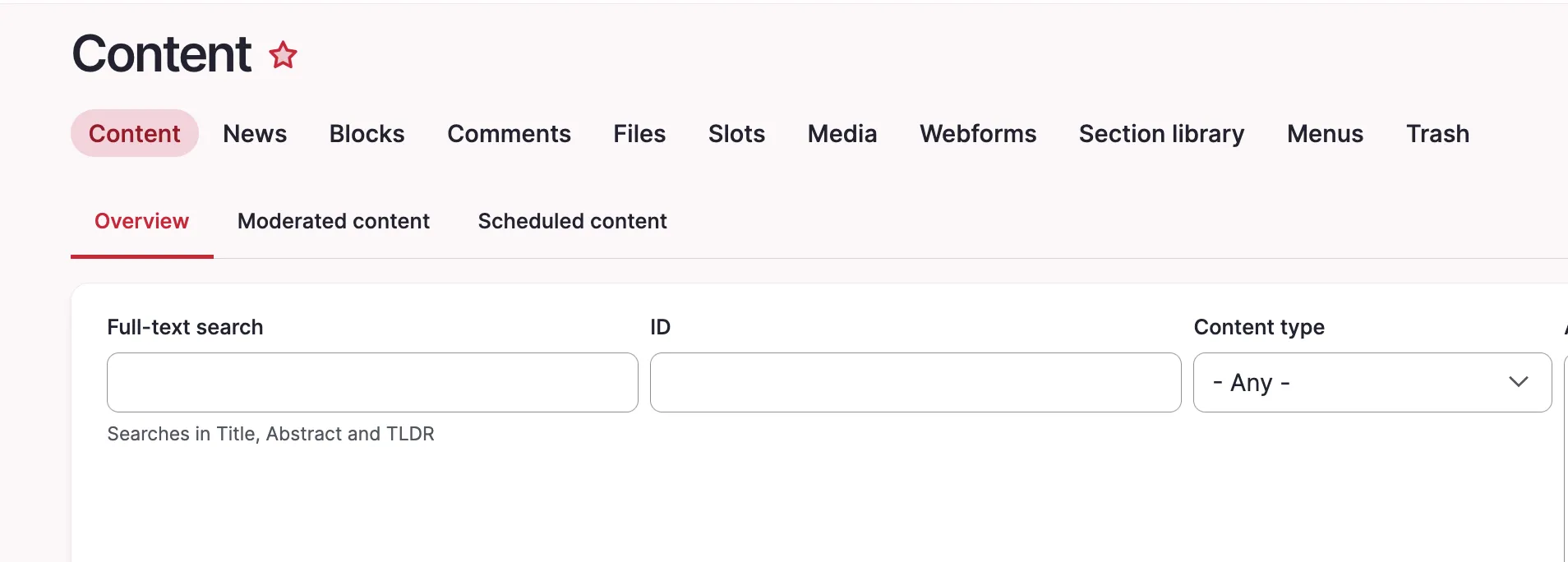
The ID of the field is shown in the inspector

13.11.2025 | Holger Weischenberg

Check whether there is only one child item using CSS

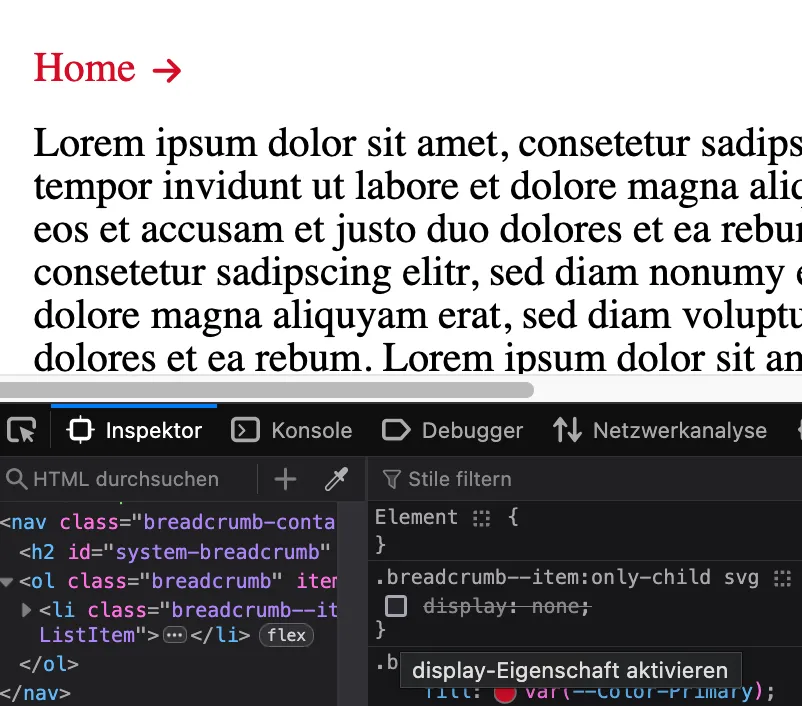
In breadcrumbs, for example, icons are often assigned for illustrating the following entries. However, under certain circumstances there may only be the initial entry, so the icon points to a blank space.

    .breadcrumb--item:only-child {
      svg {
        display: none;
      }
    }
    

Issue:

In breadcrumbs, for example, icons are often assigned for illustrating the following entries. However, under certain circumstances there may only be the initial entry, so the icon points to a blank space.
 

Breadcrumb <ol> with only one child <li> and icon <svg>

Solution:

Make use of the `:only-child` pseudo-class to determine whether there is only one item in the breadcrumb. See more in the Mozilla Dev Documentation

Also check "caniuse" for compatibility information: https://caniuse.com/?search=only-child 

13.11.2025 | Peter Gerken

Scroll offset respecting sticky elements (here: gin toolbar)

If you set an anchor link and let the browser scroll there, by default it scrolls to position 0 on the y angle, placing the content to which was scrolled exactly at the top of the browser's viewport. But if the website uses a sticky header which is also placed on top of the viewport, this actual…

For fixed headers
html {
  scroll-behavior: smooth;
  scroll-padding-top: calc(70px + var(--gin-toolbar-secondary-height, 0px)) !important;
}
@media (min-width: 767px) {
  html {
    scroll-padding-top: calc(135px + var(--gin-toolbar-secondary-height, 0px)) !important;
  }
}

Issue:

If you set an anchor link and let the browser scroll there, by default it scrolls to position 0 on the y angle, placing the content to which was scrolled exactly at the top of the browser's viewport. But if the website uses a sticky header which is also placed on top of the viewport, this actual content to which was scrolled might not be visible, since the sticky header overlaps it.

Solution:

Use the CSS property proposed in the snipped. It sets an offset when the browser triggers the scrolling action and allows to take the height of sticky headers or sticky toolbars into account.

CSS