Direkt zum Inhalt

Devbits

Kleine Code-Schnipsel aus unserem Alltag mit Drupal, PHP und DevOps: Problem, Lösung, Code.

09.07.2026 | Holger Weischenberg

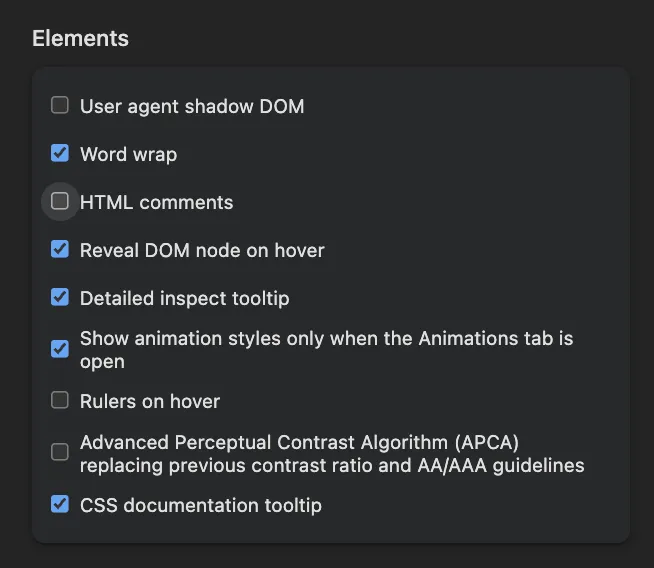
Hide HTML comments in Chrome and Firefox browser inspector

Long HTML comments disturb the developer while debugging the HTML structure.

Image showing various settings options in a developer tools interface.

Issue:

Long HTML comments disturb the developer while debugging the HTML structure.

An example:

<main role="main">
    <a id="main-content" tabindex="-1"></a>
    <div class="layout-content">
      

<!-- THEME DEBUG -->
<!-- THEME HOOK: 'region' -->
<!-- FILE NAME SUGGESTIONS:
   ▪️ region--content.html.twig
   ✅ region.html.twig
-->
<!-- BEGIN OUTPUT from 'themes/contrib/classy/templates/layout/region.html.twig' -->
  <div class="region region-content">
    

<!-- THEME DEBUG -->
<!-- THEME HOOK: 'block' -->
<!-- FILE NAME SUGGESTIONS:
   ▪️ block--ef10-messages.html.twig
   ✅ block--system-messages-block.html.twig
   ▪️ block--system.html.twig
   ▪️ block.html.twig
-->

Solution:

Chrome and other Chromium-based browsers 

provide an option to hide comments in the Elements panel. Open the Inspector and click on Settings. Then scroll down to the Elements section. Uncheck the “show HTML comments” option.

1. Open the browser's Developer Tools:

  • Press F12, or
  • Press Ctrl + Shift + I (Windows/Linux), or
  • Right-click an element and select Inspect.

2. Open the DevTools settings:

  • Click the Settings (⚙) icon in the DevTools toolbar.
  • The Settings icon is located near the upper-right corner of DevTools, immediately to the left of the three-dot menu.

3. In the Preferences tab, scroll down to the Elements section. 

4. Clear the Show HTML comments checkbox. (as shown in the screenshot above)

5. Close the Settings panel.

HTML comments (<!-- comment -->) are now hidden in the Elements panel, making the DOM tree easier to navigate and debug. To display comments again, re-enable the Show HTML comments option.

Firefox

Recent Firefox versions provide a similar setting in the Inspector. If the option is not available in your Firefox installation, update to the latest version.
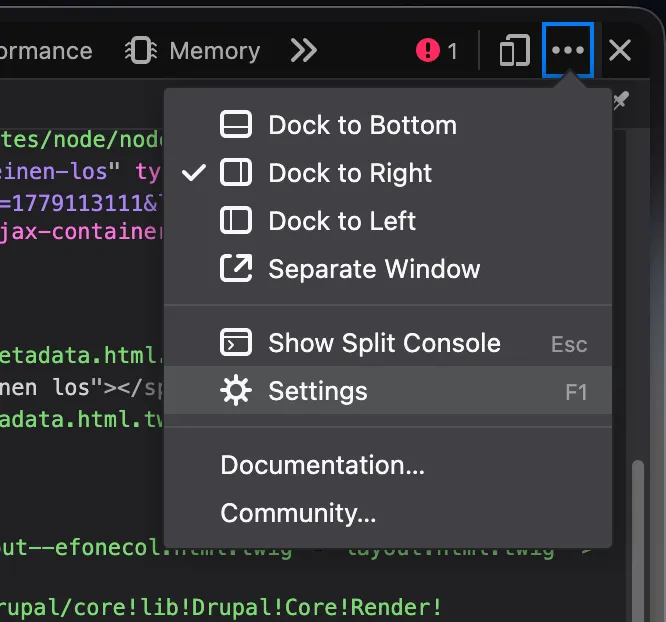
Firefox: „Einstellungen“-Menü im Entwicklerwerkzeug öffnen.

30.04.2026 | Pascal Crott

Prevent empty views blocks from getting rendered even if they are empty.

Sometimes blocks are rendered even when they are empty and even if the setting in views is activated that they should not be rendered when empty. This might be the case in combination i.e. with lazy loading. If an empty block is rendered, this may have impact on the layout because the empty block…

Issue: https://www.drupal.org/project/drupal/issues/953034
<?php

use Drupal\views\Plugin\Block\ViewsBlock;

/**
 * Implements hook_block_alter().
 */
function hook_block_alter(array &$definitions) {
  foreach ($definitions as $block_id => &$block_definition) {
    if ($block_definition['class'] === ViewsBlock::class) {
      $block_definition['class'] = 'Drupal\my_module\Plugin\Block\ViewsBlock';
    }
  }
}
<?php

namespace Drupal\my_module\Plugin\Block;

use Drupal\views\Plugin\Block\ViewsBlock as ViewsBlockCore;

/**
 * Replaces the generic Views block.
 */
class ViewsBlock extends ViewsBlockCore {

  /**
   * {@inheritdoc}
   */
  public function build() {
    if (empty($this->view->result) && empty($this->view->empty)) {
      // Without caching.
      // return ['#cache' => ['max-age' => 0]];
      // With hard caching.
      return [];
    }

    return parent::build();
  }

}

Issue:

Sometimes blocks are rendered even when they are empty and even if the setting in views is activated that they should not be rendered when empty. This might be the case in combination i.e. with lazy loading. If an empty block is rendered, this may have impact on  the layout because the empty block might still have margins or paddings

Solution:

This snippet replaces the generic Views block and checks "manually" whether or not the block is empty.

13.11.2025 | Holger Weischenberg

Simple SCSS compiler setup

A simple solution is needed to compile SCSS to CSS in a legacy project.

{
  "name": "Foo project",
  "scripts": {
    "sass-dev": "sass --watch --update --style=expanded src/scss:dist/css",
    "sass-prod": "sass --no-source-map --style=compressed src/scss:dist/css"
  },
  "devDependencies": {
    "sass": "^1.86.0"
  }
}

Issue:

A simple solution is needed to compile SCSS to CSS in a legacy project.

Solution:

Compile SCSS using npm script `npm install sass --save-dev`

13.11.2025 | Holger Weischenberg

Consider the user's preference for dark or light system colors

The theme should take into account whether the user has selected dark or light colors in the OS settings.

/* Default theme */
:root {
  --Background-Color: #fff;
  --Text-Color: #000;
}

/* Dark theme */
@media (prefers-color-scheme: dark) {
  :root {
    --Background-Color: #000;
    --Text-Color: #fff;
  }
}

Issue:

The theme should take into account whether the user has selected dark or light colors in the OS settings.

Solution:

Use the prefers-color-scheme CSS media feature. See also: documentation at developer.mozilla.org.