Direkt zum Inhalt

Devbits

Kleine Code-Schnipsel aus unserem Alltag mit Drupal, PHP und DevOps: Problem, Lösung, Code.

09.07.2026 | Holger Weischenberg

Hide HTML comments in Chrome and Firefox browser inspector

Long HTML comments disturb the developer while debugging the HTML structure.

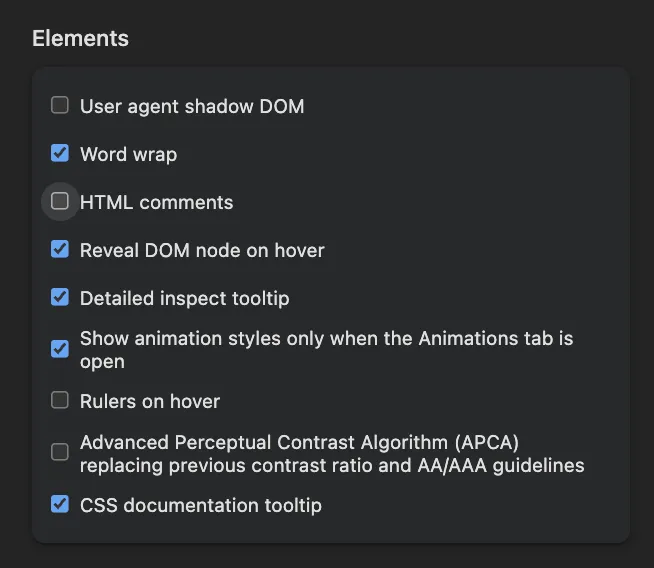
Image showing various settings options in a developer tools interface.

Issue:

Long HTML comments disturb the developer while debugging the HTML structure.

An example:

<main role="main">
    <a id="main-content" tabindex="-1"></a>
    <div class="layout-content">
      

<!-- THEME DEBUG -->
<!-- THEME HOOK: 'region' -->
<!-- FILE NAME SUGGESTIONS:
   ▪️ region--content.html.twig
   ✅ region.html.twig
-->
<!-- BEGIN OUTPUT from 'themes/contrib/classy/templates/layout/region.html.twig' -->
  <div class="region region-content">
    

<!-- THEME DEBUG -->
<!-- THEME HOOK: 'block' -->
<!-- FILE NAME SUGGESTIONS:
   ▪️ block--ef10-messages.html.twig
   ✅ block--system-messages-block.html.twig
   ▪️ block--system.html.twig
   ▪️ block.html.twig
-->

Solution:

Chrome and other Chromium-based browsers 

provide an option to hide comments in the Elements panel. Open the Inspector and click on Settings. Then scroll down to the Elements section. Uncheck the “show HTML comments” option.

1. Open the browser's Developer Tools:

  • Press F12, or
  • Press Ctrl + Shift + I (Windows/Linux), or
  • Right-click an element and select Inspect.

2. Open the DevTools settings:

  • Click the Settings (⚙) icon in the DevTools toolbar.
  • The Settings icon is located near the upper-right corner of DevTools, immediately to the left of the three-dot menu.

3. In the Preferences tab, scroll down to the Elements section. 

4. Clear the Show HTML comments checkbox. (as shown in the screenshot above)

5. Close the Settings panel.

HTML comments (<!-- comment -->) are now hidden in the Elements panel, making the DOM tree easier to navigate and debug. To display comments again, re-enable the Show HTML comments option.

Firefox

Recent Firefox versions provide a similar setting in the Inspector. If the option is not available in your Firefox installation, update to the latest version.
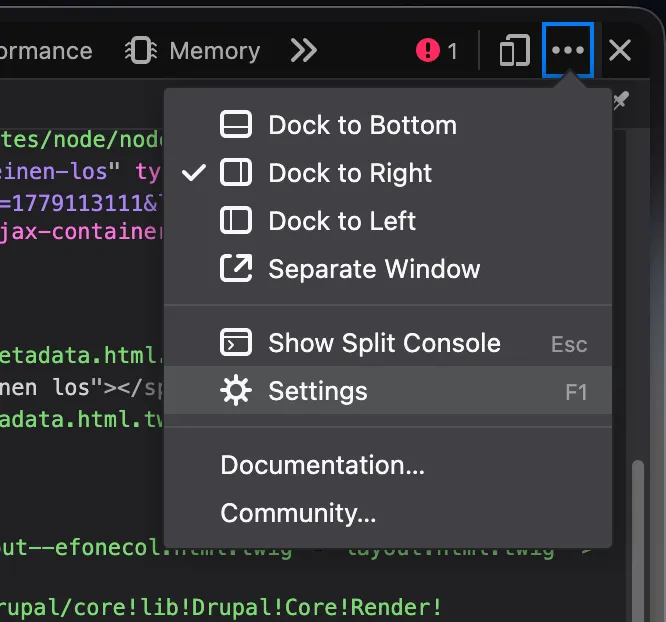
Firefox: „Einstellungen“-Menü im Entwicklerwerkzeug öffnen.

13.11.2025 | Lothar Ferreira Neumann

How to place HTML elements into webforms via the Source tab

You want to insert headings or other text elements into a web form, e.g. to subdivide it for better readability and/or understandability.

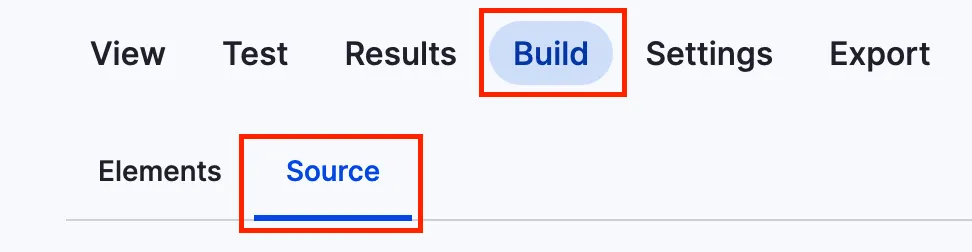
You can add headlines to a webform using the code below. To get to the source section, navigate to the form you want to alter, click on build and then on the source tab like in the screenshot.

Screenshot of the menu to add code to webform

This is just a short example on how to add a headline.

personal_data:
  '#type': html_tag
  '#tag': h3
  '#value': 'Personal data'

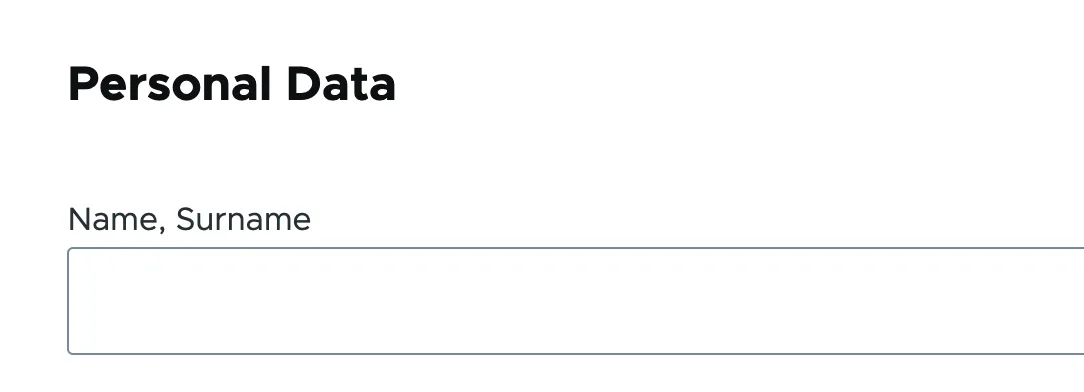
It will look something like this:

Headline within a webform

Issue:

You want to insert headings or other text elements into a web form, e.g. to subdivide it for better readability and/or understandability.

Solution:

Use a structured data format to define HTML elements that add the headline "Personal Data" to a web form.

13.11.2025 | Lothar Ferreira Neumann

Use ternary statements in Twig

You want to conditionally pass values to components in Twig based on variable existence or content.

{# Checks if a URL exists and passes it to the component. Otherwise, sets it to false. Works with primitive data types. #}
{% set link = url ? { url: url } : false %}

{# Checks if the media object is not empty and passes it to the component. Otherwise, sets it to false. Suitable for complex data types like objects. #}
{% set media = media is not empty ? { media: media } : false %}

Issue:

You want to conditionally pass values to components in Twig based on variable existence or content.

Solution:

Uses Twig’s ternary operator to check variable conditions and pass either an object with the variable or false.

If you're working with more complex objects, make sure to handle the empty test according to the Twig documentation on empty, as its behavior may vary depending on the object's implementation.

13.11.2025 | Peter Gerken

Open all HTML details elements via browser console

You are on a page which has a large amount of HTML details elements, for instance translations, and you need to find a certain bit of information by searching the page.

let details = document.getElementsByTagName('details');
for (i = 0; i < details.length; ++i) {
  details.item(i).open = true;
}

Issue:

You are on a page which has a large amount of HTML details elements, for instance translations, and you need to find a certain bit of information by searching the page.

Solution:

The provided snippet opens all details on a page. This can be copy-and-pasted to the browser console to easily access all the fields hidden behind the nested details.