Hide HTML comments in Chrome and Firefox browser inspector
Issue:
Long HTML comments disturb the developer while debugging the HTML structure.
An example:
Solution:
Chrome and other Chromium-based browsers
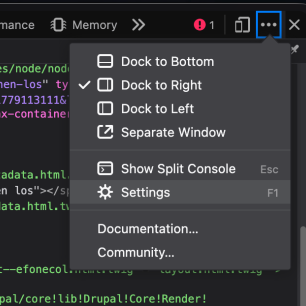
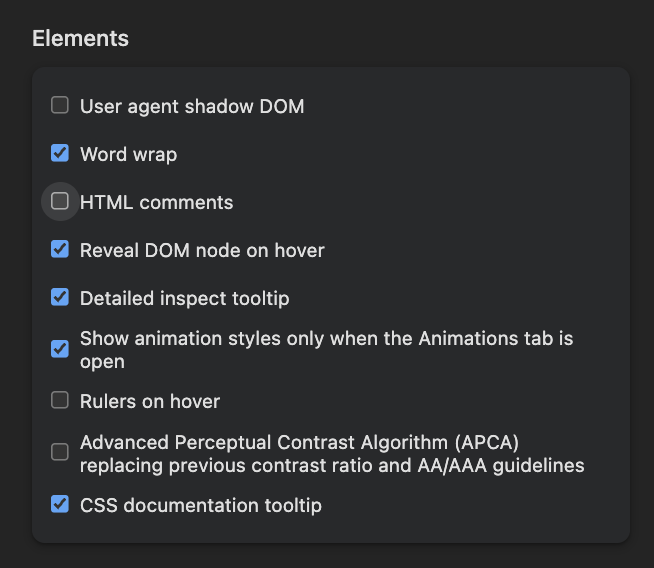
provide an option to hide comments in the Elements panel. Open the Inspector and click on Settings. Then scroll down to the Elements section. Uncheck the “show HTML comments” option.
1. Open the browser's Developer Tools:
- Press F12, or
- Press Ctrl + Shift + I (Windows/Linux), or
- Right-click an element and select Inspect.
2. Open the DevTools settings:
- Click the Settings (⚙) icon in the DevTools toolbar.
- The Settings icon is located near the upper-right corner of DevTools, immediately to the left of the three-dot menu.
3. In the Preferences tab, scroll down to the Elements section.
4. Clear the Show HTML comments checkbox. (as shown in the screenshot above)
5. Close the Settings panel.
HTML comments (<!-- comment -->) are now hidden in the Elements panel, making the DOM tree easier to navigate and debug. To display comments again, re-enable the Show HTML comments option.
Firefox
Recent Firefox versions provide a similar setting in the Inspector. If the option is not available in your Firefox installation, update to the latest version.